
Using the companion 3D Mobile Inspector is an ideal way to completely manage your inspectors and their job assignments. Conveniently, your inspectors don’t even need to come into the office in order to retrieve reports assigned to them into their phones or tablets for performing inspections and return them.
Even if you are the only inspector it’s a good idea to set yourself up to use a sub account so you are already prepared for future expansion, or to allow use of a shorter or slightly different email or login that is easier for you to remember for mobile (sub accounts are not used for correspondence so they do not have to be a valid or complete email)
Set up your Inspector Sub-accounts
Once you have signed up for Cloud3D Services and received your activation confirmation email, use the Preferences options for Cloud3D Services to set up and manage sub accounts for your inspectors to retrieve and return their assigned reports. Here are the basic setup steps:
STEP 1. In Office Management Maintain > Inspectors, verify that all inspectors and their respective email addresses have been entered. If needed, add inspectors or enter missing email information.
STEP 2. Important: This step must only be done by the registered owner of the software license who must use their own private login created at initial software activation (i.e. their private activation email & password they set up) to set up the logins for other inspectors. Be sure to keep your master login information confidential. DO NOT SHARE your Master password with others, including inspectors or employees. ONLY share or provide sub account login information you create for others to use.
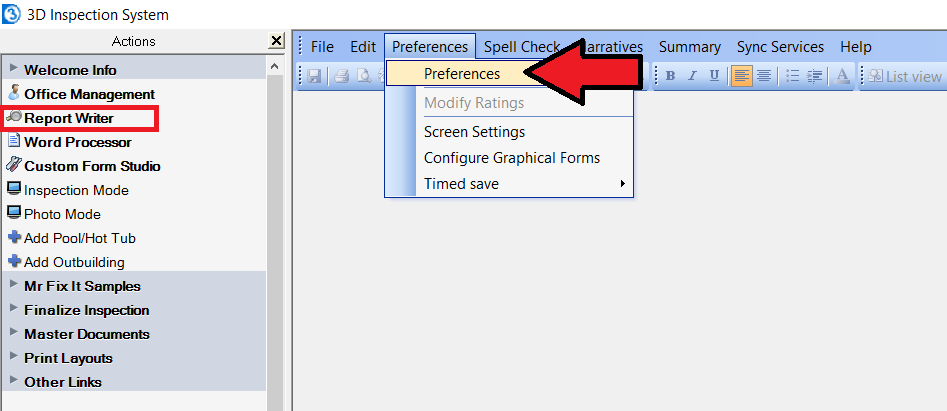
- In Report Writer, click Preferences > Preferences
- Tap Cloud3D Services tab. Make sure Enable Cloud3D Services is ticked.
- Click “Manage sub-accounts” button, and Login using your master account ID and password. Note: You may use “Remember my password” for the master account if you want others who have access to the database on this computer to be able to access and adjust inspector sub account logins later.
- Add a sub-inspector login for each inspector who will be using the mobile app. We recommend using their email addresses or first part of their email addresses as a unique and easy to remember login.
- If you as owner also perform inspections and plan to use the mobile app, you should also set up a special sub-logon for yourself for use on your field device. When doing so, if your email from Office Management happens to be the same as your master login, modify it slightly to be unique (e.g. if your master logon is [email protected] you might make your sub account login just bob@mycompany or [email protected]) and use a different password from your master. When inspecting on your mobile device, ALWAYS use your “sub” login to prevent the risk of accidental access or overwriting others’ reports.
- When done setting up or adjusting sub-accounts for your inspectors, click Save sub-accounts. Otherwise the logins you added or adjusted will not be updated.
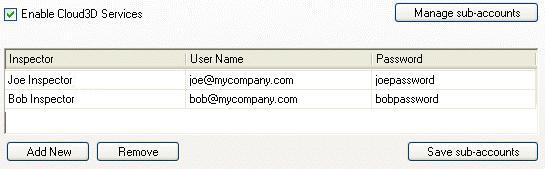
STEP 3: Be sure to provide your inspectors with their particular sub-account login and password information you set up for them. You may return to Manage sub-accounts at any time to verify or change passwords for inspectors or to add or remove access as desired.
That’s all there is to initially setting up Cloud3D for use with your multiple inspectors. Now just use it!
Sending reports to your inspectors to complete
For any given job in Office Management, be sure to assign the inspector, date, and time. Select the saved job in Office Management and send the report to your inspector to complete using Create and Upload Mobile inspection activity in the right pane. Choose a job name assigned to the desired inspector and the form group for the report, and login when prompted. The report and inspection date and time is uploaded to the cloud, now available for the inspector assigned to it to access in his mobile device.
To open a report on a device: In 3D Mobile Inspector, each inspector simply logs in using their sub-account Cloud3D ID and password you assigned to them. Only reports specifically assigned to the inspector are shown “on the server” with their inspection date and time. He may tap report(s) to download, complete, and later upload back to the cloud when finished for subsequent conversion back to the original database.
Converting the final inspection: Once the inspector returns the finished report to the cloud, it will show as “Complete” in the server listing. The main office may check the status of reports any time using the Retrieve Mobile Inspection toolbar option in the PC program. This option is also used to retrieve the finished report back to the original computer once complete. Once converted, the main office will usually do any finalization steps such as attaching a summary (items flagged for summary on the device via ratings or manually automatically merge) and then delivers the inspection.
Great Benefits with No Hassle!
Your main office can now easily control all booking information and only send inspectors the specific reports they need to complete. Since all such mobile app reports are transferred to/from the devices strictly through your Cloud3D Services account, when used as designed, this also prevents inspectors from moonlighting on the side or purloining your customized master forms through 3D Mobile Inspector.
And since 3D Mobile Inspector requires no additional licensing for inspectors to use, this makes it an ideal option to set up remote field inspectors. When using 3D Mobile Inspector an inspector should only use his mobile device to retrieve and send reports back to the main office computer, and should not use a separate laptop or regular computer for such reports, thus allowing inspectors to use inexpensive compatible phones or tablets instead of using the regular desktop software- which would also require additional licensing- on more expensive laptops or tablet PCs. Even sub-contractor inspectors who are not actual employees may use this method to complete work for your company (which is otherwise restricted by your main software EULA).
The 3D Mobile Inspector app is so easy to use, your inspectors can totally focus on their most important inspection task at hand. Implementing this business model allows a company complete control over one’s inspectors!
For further and general information about using 3D Mobile Inspector, see our main 3D Mobile Inspector product page.
Note: Should a main office instead wish to provide trusted end inspectors FULL access for uploading and retrieving and finalizing reports, job booking, delivery, or other tasks in the regular PC program, a networked office workstation may be set up to share data with the main office PC and the inspector provided a remote connection to it. Microsoft has handy Remote Desktop tools for regular Windows or Android or iOS and other third-party options also allow control of another computer as if being used directly. However all your data remains conveniently stored together in one location on your network, while still allowing for inspector flexibility. Inspectors using this method may still use 3D Mobile Inspector entirely for collecting field data, and would only remote into the workstation when needed for other tasks, thus allowing jobs and forms to work properly on the original machine. Multiple inspectors may even share a workstation, provided it is not used concurrently, or additional workstations could be used.