
>This page is being updated>> please check back later or send a ticket to support for immediate assistance with networking
We recommend reviewing all information before starting. Consult with 3D support if you have any questions.
LICENSING: When installing 3D desktop software on additional computers, please verify with 3D Inspection Systems that appropriate licensing has been obtained or arrange to purchase additional licensing seats. The host/server machine for the data (regular computer or server) will use one license seat (which may be complimentary), and each additional client/workstation computer with 3D Inspection System software installed will use a license seat. A separate file server containing only shared reports via a mapped drive connection that does not have 3D installed does not require a license seat. 3D Inspection Systems reserves the right to deny future support, activations, or other services or revoke licensing (or pursue other legal actions) where users fail to purchase appropriate licensing for additional computers in compliance with the EULA.
HARDWARE: Please verify the host/server and networked client computers on which 3D Inspection System is to be installed meets current System Requirements.
Your personal qualified network administrator should be consulted for assistance with setup and general connecting of computers on your actual network. Your IT may submit a ticket to 3D support directly for assistance on your behalf. Since every network is different, 3D Inspection Systems cannot directly assist with the actual networking of the computers or troubleshooting network settings. In some cases, IT may need to temporarily elevate rights on the profile to be used on each computer to install and initially set up the software.
3D Inspection System software must be installed on the host/server computer, and on each client/workstation where it will be used.
RESET CONNECTION STRING: The connection string may need to be reset if the software is not connecting to the correct database instance or tenant. For example, if a client/workstation is already connecting to the database running locally on the client rather than the database located on your host/server, if a connection file from another computer or device was improperly copied to a different device, a credential change breaks a prior connection or an error otherwise occurs where one needs to access the Welcome Wizard to establish a fresh connection.
The connection may be reset on a particular computer where 3D software is installed by using File Explorer to show hidden items and extensions and navigate to C:\Users\[UserName]\AppData\Roaming\3D Inspection System 11\ folder. Edit config.ini in Notepad. Adjust the <ConnectionEstablished>true</ConnectionEstablished> node value to <ConnectionEstablished>false</ConnectionEstablished>. Next File > Save and then close the file in Notepad. Launch 3D and its Welcome wizard should reappear.
BACKUPS: Full backups of your data that include the Office Management information can only be made from the host/server machine using its local connection to the SQL database. Backups made from a connected client/workstation machine may be made, or if the host/server connection string is not configured using the default local connection, but will be missing this important data and may display this type of message.
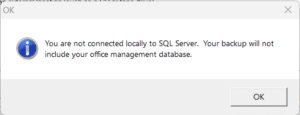
Backups may also be missing production data (but no message will occur) if the data folder has not been properly networked to be shared in common, and used as a mapped connection on each workstation.
GENERAL NOTES:
- 3D Inspection System 12 installations create and use a SQL 2022 “ThreeD2” instance. e.g. connecting via SQL Management Studio, server name and instance would be COMPUTERNAME\THREED2 (instance name should not be included in the Computer Name selected from the 3D Welcome wizard- only the computer name of the server itself). Note that installing a separate SQL installer directly from Microsoft will not create the proper named instance 3D uses.
- In the event of a SQL error 26 when trying to create a company database using 3D’s Welcome Wizard at launch, verify if the THREED instance was created by checking for a C:\Program Files\Microsoft SQL Server\MSSQL16.THREED2 folder. If it failed to create, check for any policy or permissions issue. Use the Event log or C:\Program Files\Microsoft SQL Server\160\Setup Bootstrap\Log\Summary.txt to troubleshoot what failed and then address that issue.
- Note: Windows 11 exposes actual physical disk sector sizes (whereas Windows 10 emulated supported values) so that certain new SSD or NVMe drives with sector storage sizes greater than the 512 bytes and 4 KB SQL Server currently supports renders SQL Server unable to start. To check for this issue, use a cmd prompt as admin to run the command “fsutil fsinfo sectorinfo C:” If either value for PhysicalBytesPerSectorForAtomicity or PhysicalBytesPerSectorForPerformance is larger than 4096 bytes, use Microsoft’s work around: https://learn.microsoft.com/en-us/troubleshoot/sql/database-engine/database-file-operations/troubleshoot-os-4kb-disk-sector-size?tabs=registry-editor Afterward, be sure to reboot Windows for it to apply, then uninstall the 3D Inspection System from Windows Installed apps and reinstall 3D.
- If your network is domain joined to use Windows Authentication (as Microsoft recommends), the network administrator may need to install and use SQL Server Management Studio on the host/server machine actually containing the database to add the client/workstation users so they are in a proper domain.
- If your network is using TCP/IP with SQL Authentication (not preferred by Microsoft), please contact 3D support for default credential information, unless you have already changed credentials using SSMS for connecting client machines, in which case you will need to record and use those credentials. IMPORTANT NOTE: When connecting 3D on the host/server to its local database, we recommend either connecting using Windows Authentication or using “(local)” as the computer name with SQL Authentication (e.g. if a different user profile will connect to the database than where it was originally installed), as using a specific computer name on the machine hosting the database may prevent it from updating to future versions of 3D as well as including the database in backups made from 3D on the local machine (see Backups information above). Although you may opt to make backups separately using SQL or other tools, assistance with these is outside the scope of 3D support.
- When updating 3D software on a network, we recommend first updating the host/server machine hosting the database, and then update workstations to the matching version. All computers should use the same version of 3D to ensure compatibility.
- Any questions regarding proper network or domain setup should be directed to an appropriate qualified IT technician or Microsoft. 3D Inspection Systems support can advise regarding setup on a local machine where the database is located, or advise regarding specific settings to use in 3D for connections if a copy of SQL Server Management Studio (SSMS) installed on the client/workstation is able to successfully connect to the database instance on the host/server directly, outside 3D. SSMS may be useful for network administrators to troubleshoot connectivity through the firewall/ports.
STEP A- HOST/SERVER SETUP:
Use the appropriate scenario steps below to set up the host/server computer.
A1. New Installation (new setup of 3D Inspection System software for a business):
- Install 3D desktop software on the host/server, launch, and activate as appropriate. IT or third parties may choose Activate Later to defer activation and continue setup, allowing the registered user to actually activate later after verifying everything functions.
- Launch 3D Inspection System and use Welcome Wizard “Set Up New Computer” option to create a database. Note: Users may later adjust company and inspector information using Maintain options in Office Management.
- Note: The default data folder location is normally \Documents\3D Inspection System 11\ You will need to share this folder with the other client/workstation computers on the network that will be running the 3D Inspection System software.. If you wish to change the location of this folder or relocate it to a separate file server or alternate drive, this may be done by (a) copying the folder to another drive letter accessible location, (b) using 3D Inspection System Actions side pane to switch to Report Writer, then use Preferences > Preferences, File locations tab “Location of data files” to change the Data folder location (use meatballs menu to select new location for a mapped drive letter path), (c) close and reopen 3D.
- Allow data folder location in #3 to be shared with other computers on the network. You will map it to a drive later on each connected client/workstation later.
- By default, SQL may disable network access for security. Configure protocol and port access to allow the THREED2 instance to connect through the firewall. For example, you may need to enable TCP/IP protocol for THREE2, explicitly open a specific port for SQL Server (e.g. 1433) to connect through the firewall instead of using a dynamic one, and UDP 1434 for the SQL Browser service (also make sure SQL Server Browser is running and set Automatic). You may need two separate firewall rules: one for the data traffic and one to help other computers “find” THREED2. See also https://learn.microsoft.com/en-us/sql/database-engine/configure-windows/server-network-configuration?view=sql-server-ver16 (Pro tip: Name your firewall exceptions for easy recognition, e.g. “SQL – THREED2 Data” and/or “SQL Browser Service” as applicable)
- Go to Step B1 (below) to setup and connect client/workstation machines to the 3D host/server data.
- Note that a backup should regularly be made from 3D Inspection System software launched directly on the host/server machine using File > Backup All Files. This should create a complete backup .zip 3D supports. We recommend verifying 3dbackup .zip files can be opened after creation, and store copies safely off the drive. Should you choose to backup SQL and data files by other means, 3D support may or may not be able to offer assistance with those items.
A2. Upgrading prior working 3D version 12 series to newer 3D version for Existing Installation:
- Launch existing 3D software and use File > Backup All Files to create a fresh backup of all the data. If any issue is experienced during backup, please contact 3D support. We recommend opening the 3dbackup .zip files after creation to confirm the file is viable. If multiple backup .zip files are created during the backup process, open each of them to verify viability, and we recommend contacting 3D support in regard to archiving older data to make future backups smaller, faster, and easier to work with if ever needed.
- Uninstall the prior version of 3D from Windows Installed apps.
- Install the new version of 3D Inspection System using default wizard options.
- Launch 3D to verify the program reopens without issue. If database migration or updating is needed, initial launch may take slightly longer as it completes that process.
- By default, SQL may disable network access for security for new instances. IF upgrading from a version of 3D 12.3 or older, you may need to configure protocol and port access to allow the newer THREED2 instance to connect through the firewall, you may need to enable TCP/IP protocol for THREE2, explicitly open a specific port for SQL Server (e.g. 1433) to connect through the firewall instead of using a dynamic one, and UDP 1434 for the SQL Browser service (also make sure SQL Server Browser is running and set Automatic). You may need two separate firewall rules: one for the data traffic and one to help other computers “find” THREED2. See also https://learn.microsoft.com/en-us/sql/database-engine/configure-windows/server-network-configuration?view=sql-server-ver16 (Pro tip: Name your firewall exceptions for easy recognition, e.g. “SQL – THREED2 Data” and/or “SQL Browser Service” as applicable). Services and exceptions specific for a prior THREED instance if present may be optionally disabled.
- Go to Step B2 (below) to update the client/workstations to the same version and reconnect to the SQL data if needed.
A3. Moving from an old Host/Server to a new Host/Server:
- On the old host/server, launch existing 3D software and use File > Backup All Files to create a fresh backup of all the data. If any issue is experienced during backup, or if the backup creates multiple 3dbackup .zip files for the backup date, please contact support for advice. We recommend opening 3dbackup .zip files after creation to confirm the file(s) is viable.
- Install the 3D software on new Host/Server using default wizard options, launch, and activate as appropriate. IT or third parties may choose Activate Later to defer activation and continue setup, allowing the registered user to actually activate later after verifying everything functions.
- At launch choose Activate Later to continue for now. Initially use Welcome Wizard “Set Up New Computer” option to create a database. Enter minimal information such as company and inspector name only as placeholders since this data will not be kept.
- Transfer the 3dbackup.zip made in step 1 to the new host/server computer and use Office Management, use File > Restore from Backup to select and restore the 3dbackup file items. IMPORTANT: If also changing 3D versions while moving to a new Host/Server, and the prior version was 12.3 or earlier, we recommend NOT restoring “Preferences” to avoid restoring a configuration that will attempt to connect to an old version Instance.
- By default, SQL may disable network access for security for new instances. Configure protocol and port access to allow the THREED2 instance to connect through the firewall. For example, you may need to enable TCP/IP protocol for THREE2, explicitly open a specific port for SQL Server (e.g. 1433) to connect through the firewall instead of using a dynamic one, and UDP 1434 for the SQL Browser service (also make sure SQL Server Browser is running and set Automatic). You may need two separate firewall rules: one for the data traffic and one to help other computers “find” THREED2. See also https://learn.microsoft.com/en-us/sql/database-engine/configure-windows/server-network-configuration?view=sql-server-ver16 (Pro tip: Name your firewall exceptions for easy recognition, e.g. “SQL – THREED2 Data” and/or “SQL Browser Service” as applicable)
- Go to Step B3 (below) to update the workstations and connect them to the new server SQL data and data folders as needed.
- Once set up and connected, launch 3D again on the server and Activate as needed. As before, arrange to periodically use the copy of 3D installed on the new host/server to File > Backup All Files and store 3dbackup.zip files appropriately.
STEP B – CLIENT/WORKSTATION SQL NETWORKING:
Once 3D software is installed and working on the Host/Server, network administrator may set up connected Client/Workstation computers. Note: Alternatively for simple remote usage, RDP or similar might be used without installing 3D on other machines, or RDP might be used to “remote into” client/workstations where 3D has been installed and connected to the host/server data.
Proper networking of 3D data involves two pieces: Networking the SQL THREED2 database instance, and networking the shared data folder containing other 3D customizable data such as reports, forms, documents, actions, etc.
3D Inspection System installs with Mixed Mode authentication for flexibility, but use of Windows Authentication is recommended by Microsoft. If the networked computers are not domain joined or you cannot use Windows Authentication but must use SQL Authentication, please contact 3D Inspection System support for assistance with default credentials or use SSMS to adjust sa or specific user credentials in THREED2 as desired (note if credentials are changed, it is your responsibility to record them for future use as a 3D tech will otherwise expect default options).
After the appropriate Step A scenario (above) has been completed for Host/Server setup, use the matching scenario # steps below to set up Client/Workstation computer(s).
B1. New Installation on a replacement, reset, or new client/workstation:
- Verify host/server is already running the same version of 3D (Help > About 3D) you will be installing on the client/workstation.
- Install 3D desktop software on the client/workstation, launch, and activate as appropriate. IT or third parties may choose Activate Later to defer activation and continue with setup, allowing the registered user to actually activate later after verifying everything functions.
- Use Welcome Wizard to initial set up a new company database locally to verify SQL functions properly on the computer. Use the workstation name as the company for easy identification, and only enter an Inspector name to proceed. We will connect to the real database later.
- Use Actions pane in 3D to switch to Report Writer. Use Preferences > Preferences, File Locations tab to Open the user/temp folder on the local C: of the client/workstation. Leave File Explorer open and Cancel the Preferences window and close the software. In the open user/temp folder location, delete the config.ini file to reset the connection.
- Launch 3D. Use Welcome wizard option “Connect to local or network SQL” > Connect to a Database >The Database is On Another Computer to specify the Computer Name of the host/server. Specify desired Authentication and reselect a Network Protocol, default or otherwise. Use Select Database to choose the company name from the server database and choose Continue.
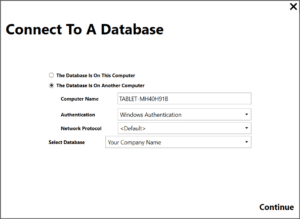
Note: If Select Database or Continue never appears, the client/workstation is unable to “see” the SQL THREED2 instance on the host/server and firewall or other settings may need adjusting on the server. Go back to step A1 (5) above in the Server section setup.
Tip: Temporarily disable firewall, security, or other settings to troubleshoot and verify connection, then re-enable items and apply needed exceptions or adjust configurations. Use SSMS outside of 3D on the client/workstation to test connecting to the THREED2 instance on the server while troubleshooting. Once SSMS can connect from client/workstation to host/server, use the same Authentication type and network protocol in 3D or contact 3D support.
6. Close and reopen 3D. Office Management should now reflect the same information as seen in 3D when opened on the host/server. When this is working, proceed to Step C1.
B2. Upgrading prior 3D version on Existing client/workstation:
- Server should already be running the newer version (see step A scenarios), and appropriate firewall exceptions made for the THREED2 instance.
- On client/workstation, uninstall the prior version of 3D from Windows Installed apps.
- Install newer version of 3D and launch the software to verify it opens and reconnects. Add a new job in 3D on the host/server and verify you can refresh/switch Views and locate the job in 3D on the client/workstation. If so, you should be all set and may skip additional steps.
- If software does not reopen and connect to prior company data, or if previous connection was not made via Windows Authentication you may need to reset the database connection and connect fresh to the newer SQL instance on the server. To do so, on the client/workstation, use File Explorer to show hidden items and extensions and navigate to C:\Users\[UserName]\AppData\Roaming\3D Inspection System 11\ folder. Edit config.ini in Notepad. Adjust the <ConnectionEstablished>true</ConnectionEstablished> node value to <ConnectionEstablished>false</ConnectionEstablished>. Next File > Save and then close the file in Notepad. Launch 3D and use the Welcome wizard option “Connect to local or network SQL” > Connect to a Database >The Database is On Another Computer to specify the Computer Name of the host/server. Specify desired Authentication and reselect a Network Protocol, default or otherwise. Use Select Database to choose the company name from the server database and choose Continue. See also Troubleshooting Steps at bottom of section B. NOTE: If upgrading from 12.3 or earlier and SQL Authentication was used, you may need to contact support for assistance, or use SSMS on the server to adjust the sa password or add/user specific user permissions for Windows Authentication. Use SSMS on the client/workstation to connect to the THREED2 database on the server outside of 3D and use those settings in 3D or contact support for assistance with entering working SSMS connection settings.
B3. Reconnecting Existing client/workstations after moving an old Host/Server to a new Host/Server:
- Reset connection string on Workstation: Set File Explorer to show hidden items and extensions and navigate to C:\Users\[UserName]\AppData\Roaming\3D Inspection System 11\ folder. Edit config.ini in Notepad. Adjust the <ConnectionEstablished>true</ConnectionEstablished> node value to <ConnectionEstablished>false</ConnectionEstablished>. Next File > Save and then close the file in Notepad.
- Launch 3D and use the Welcome wizard option “Connect to local or network SQL” > Connect to a Database >The Database is On Another Computer to specify the Computer Name of the new host/server. Specify desired Authentication and reselect a Network Protocol, default or otherwise. Use Select Database to choose the company name from the server database and choose Continue. Use SSMS on the client/workstation to connect to the THREED2 database on the server outside of 3D and use those settings in 3D or contact support for assistance with entering working SSMS connection settings.
- Add a new job in 3D on the host/server and verify you can refresh/switch Views and locate the job in 3D on the client/workstation. If not, reset connection and verify the database computer and location.
- Use Section C to network data folder next if its location also changed with the server change.
Troubleshooting Connection:
If Company Name does not appear for selection and you cannot Continue or a spinning circle remains:
- Did you enter the Computer Name correctly? On the computer containing the database, verify the computer name by right-clicking Start and viewing System information. Use its “Device Name” as the computer name.
- If choosing the Computer Name and type of authentication does not display the Database from which to select the company, try connecting directly to the database using SQL Management Studio installed on the workstation. If you cannot connect SSMS to the database, then you will need to troubleshoot your network and firewall connections so it can connect. Once SSMS can connect to the database, you should be able to connect to the 3D Inspection System software using the same authentication and/or credentials. Use SSMS on the server to adjust the sa password or add/user specific user permissions for Windows Authentication. Use SSMS on the client/workstation to connect to the THREED2 database on the server outside of 3D and use those settings in 3D or contact support for assistance with entering working SSMS connection settings. Try turning off the firewall. If 3D can then “see” the Company information, you need to adjust the firewall settings.
STEP C – CLIENT/WORKSTATION DATA FOLDER NETWORKING: >>
After successfully connecting a copy of 3D Inspection System software running on a client workstation to the SQL THREED2 instance located on the server, next connect to other data files used by the rest of the program (reports, forms, documents).
- On client/workstation, open 3D and add a new job in Office Management. Save and Exit. Verify opening 3D on host/server shows new job. If not, return to Step B to properly network the SQL THREED2 instance from the server machine.
- Map the shared data folder already used by 3D on the host/server to a drive letter on the client/workstation. (Tip: Verify or open the location on the server by opening 3D there and using Report Writer > Preferences > Preferences, File Locations tab to note or open the data folder.)
- Note that periodically a backup should be made from 3D launched on the server machine using File > Backup All Files to create a complete backup that 3D support team can assist with. If you choose to backup SQL and data files by other means, 3D support may or may not be able to offer assistance with those items.
Tips:
The drive share for the data folder (located on host/server or file server) MUST be mapped to a real drive letter and path on the client workstation, because a Universal Naming Convention (UNC) path (i.e. \\server..) 3D needs standard drive letter nomenclature to to properly create and manage temp folders and other program functions. Mapped drive locations also improve reliability and speed of operations. Unmapped drives may unexpectedly disappear in Windows, which could result in data corruption. When a drive share is mapped properly to a drive letter, you should be able to open that specific drive letter and/or folder containing your server data folder from File Explorer ThisPC on the client/workstation. Since 3D Inspection System software needs to manipulate files to work (create directories, add/remove files, etc.), you must set full privileges for the shared data folder. You may wish to map a parent folder containing the actual 3D data folder and use the drive letter and path in 3D to locate the files.
Once your data folder location is mapped to a real drive letter and folder name, on the workstation open the 3D Inspection System software and and set its data location to the shared folder on the server containing the actual data, forms, documents, and reports. To do this, open the 3D Inspection System software, switch to the Report Writer, click Preferences > Preferences, File Locations tab. For “Location of data files: use the browse button to the right to navigate and select your data folder and accept the change (be sure to browser to the real mapped drive letter and folder path). Note that the “Location of user and temporary files” folder should remain set to a local location on the workstation. This setup allows the Office Management itself to connect to the SQL database on the server, the rest of the program to share the remaining data files in the common mapped “data” folder, and workstation specific files and settings and temporary folders more efficiently accessed locally. Finally, close and reopen 3D Inspection System to use the new data location.
For further assistance with networking, please consult your network specialist. 3D Inspection System support can assist when your basic network is working and you have a mapped drive letter on the client/workstation that accesses your 3D Inspection System data folder on the host/server or file server, and when SQL Management Studio (SSMS) is able to connect to the SQL “ThreeD2” database instance on the server from your workstation.
Note About Backups: Note that your IT person or network administrator may prefer a separate backup routine for backing up SQL data on the server directly. Otherwise, if you want 3D Inspection System backups that are made within the program using the File > Backup All Files option to include the Office Management information stored in SQL, the backup MUST periodically be run directly from the copy of 3D Inspection System running on the server itself, as it can only access the SQL database for backup if “Local”. Note that any backups done from within 3D Inspection System on a workstation would not include the Office Management information stored in SQL, but would only include the other custom data files used by the remainder of the program.
Note about RDS (Terminal Services): For remote access, 3D software is not a multi-session aware app to work on Terminal Services/RDS, and launching from another user profile may cause the app to “repair” each launch and re-prompt activation, so it is not officially supported. Unless you need concurrent access for multiple users, you might be able to use a single profile for anyone needing to access 3D in the environment to avoid messy profile management related issues switching users. Multiple users might feasibly use the software on the terminal when needed under the same profile, just not at the same time.
For typical concurrent use of the program amongst multiple users, separate workstations or terminals for each user would be recommended (in accordance with the number of purchased license seats- concurrent access by multiple users on the same computer or server requires appropriate licensing for EULA compliance.) If a physical network of multiple computers is not desired, one might be able to use VMs in the context of Personal Host Pool (Personal Desktop Assignment) to keep user profiles separate, and/or use FSLogix App Masking/Redirection, Symbolic Links, or Application Virtualization to handle C:\ProgramData information. 3D cannot offer direct support or troubleshooting for setup of such arrangements, but it might allow one to network SQL and the data folder (which might be a mapped file server) and set up 3D on each workstation/VM to access the shared host/server resources. Each workstation/VM would maintain a separate user profile and 3D user/temp folders, and in turn be accessed remotely from another location using Remote Desktop or similar utility, with all data in the centralized location.
For managing multiple inspectors, use of 3D Mobile Inspector apps to retrieve and return reports is often an easy solution without requiring additional licensing or networking. Should an inspector wish to work further on final reports retrieved back to the main office/server, they might remote into a networked workstation running the desktop version of 3D, or opt to use a free non-timed evaluation copy of 3D on their own computer to open and perform final editing on reports they might access from a shared file server or other means. Contact 3D support or sales for details.